Setting Up the German Language Pack for Onartline Multisite Domain Mapping (OMDM)
Quick Installation Guide
If the technical details are too much for you, the following steps should be enough:
- Download the ZIP file via [link to download page] and unzip it
- Upload the included language files to the
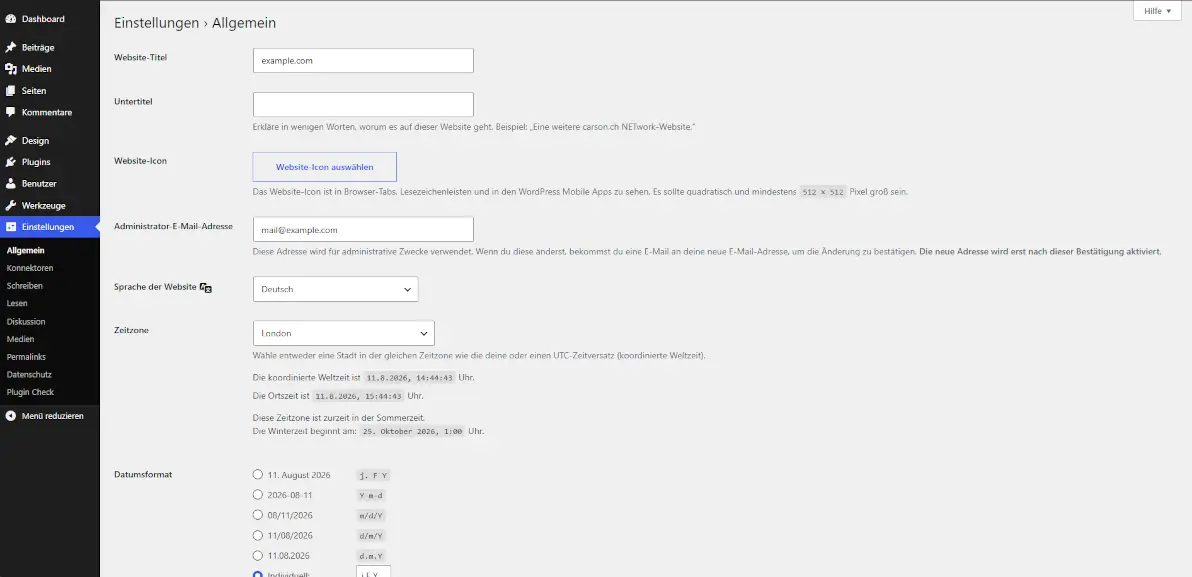
wp-content/languages/plugins/folder using your hosting provider’s file manager - Under Settings → General, make sure German is selected as the site language
That’s it. If you’re unsure about any step, you’ll find the detailed guide further down, as well as the install-readme.txt file inside the ZIP file with additional information.
Detailed Guide
What you’ll need
- Access to your server (via FTP or your hosting provider’s file manager)
- The downloaded ZIP file containing the language files
Step 1: Download the language pack
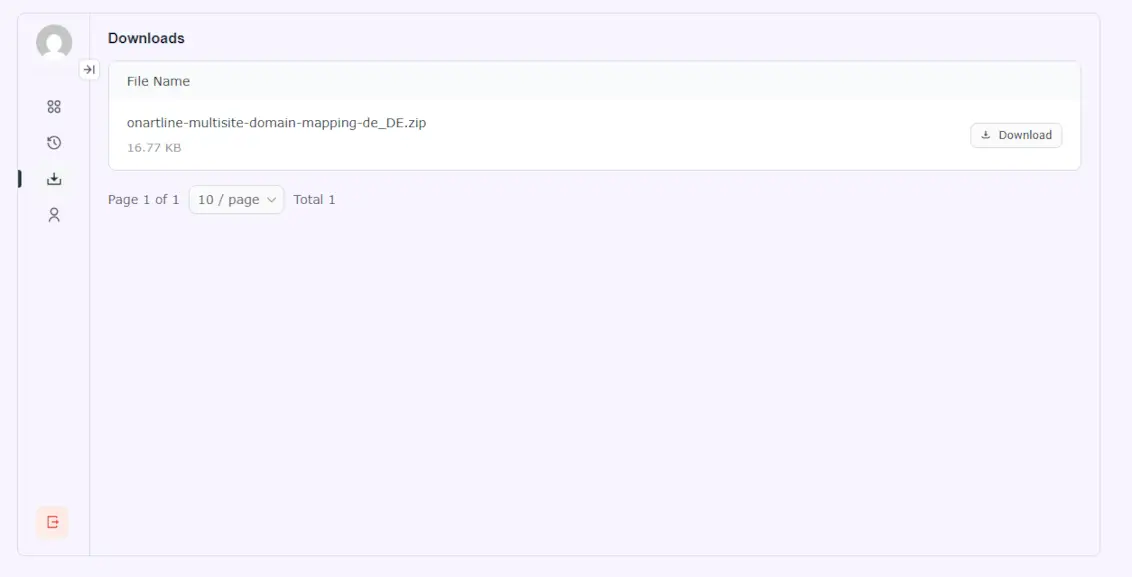
Download the ZIP file via my.onartline.com. The file contains the language files as well as an install-readme.txt with additional information.
You can then download the file under Downloads in the My Account area.
Step 2: Unzip the ZIP file
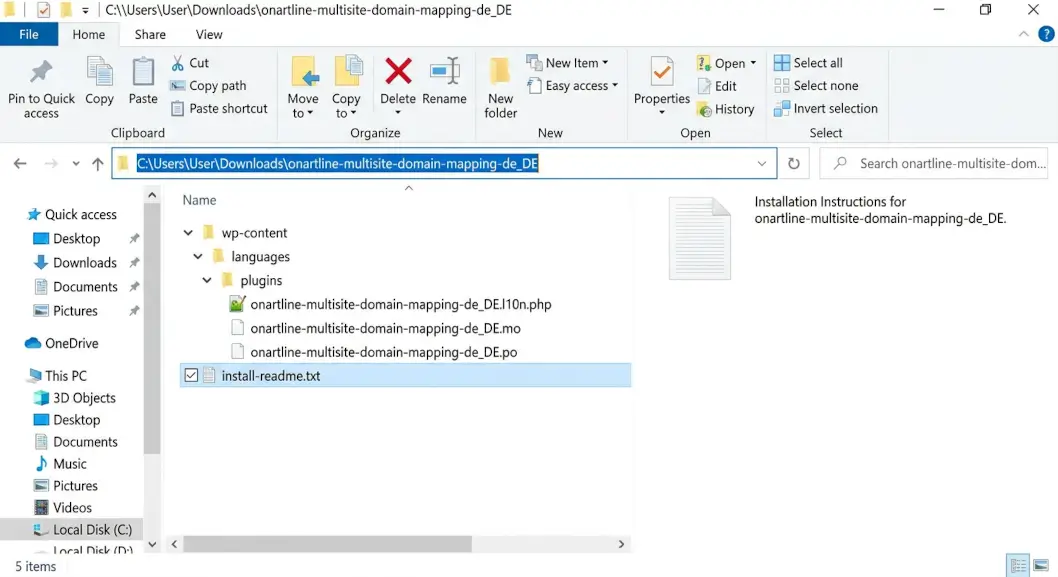
Unzip the downloaded ZIP file on your computer. This will give you the folder onartline-multisite-domain-mapping-de_DE. Inside, you’ll find the install-readme.txt directly, along with the folder structure wp-content/languages/plugins/ containing the three required language files (.po, .mo, and .l10n.php). This structure already shows you exactly where the files will need to go on your server later.
Step 3: Locate the target folder on your server
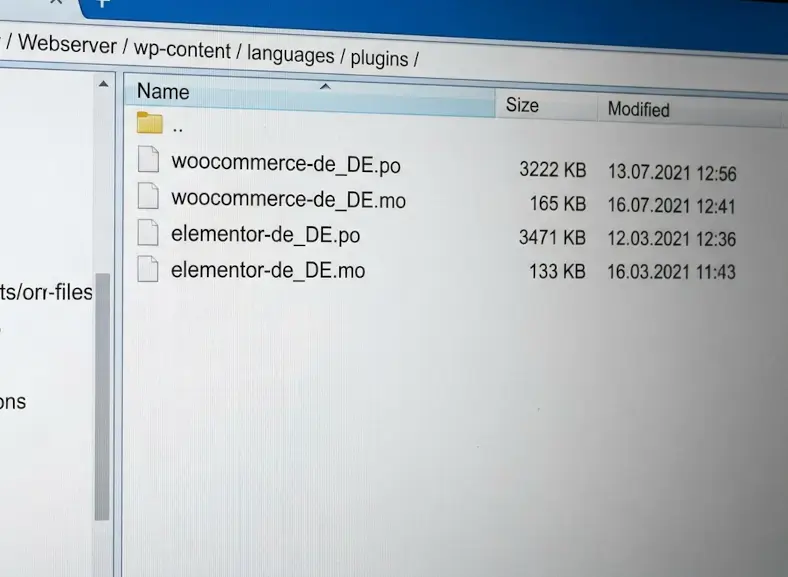
Connect to your server via FTP or your hosting provider’s file manager and navigate to the following folder:
wp-content/languages/plugins/
The identically named folder structure in the unzipped ZIP file serves as your reference here.
Step 4: Upload the language files
Upload all three language files (.po, .mo, and .l10n.php) from the wp-content/languages/plugins/ subfolder of the unzipped ZIP file to the corresponding folder on your server.
Step 5: Activate the language
Go to Settings → General in your WordPress backend and make sure German is selected under “Site Language.” This is usually already the case.
Step 6: Verify the installation
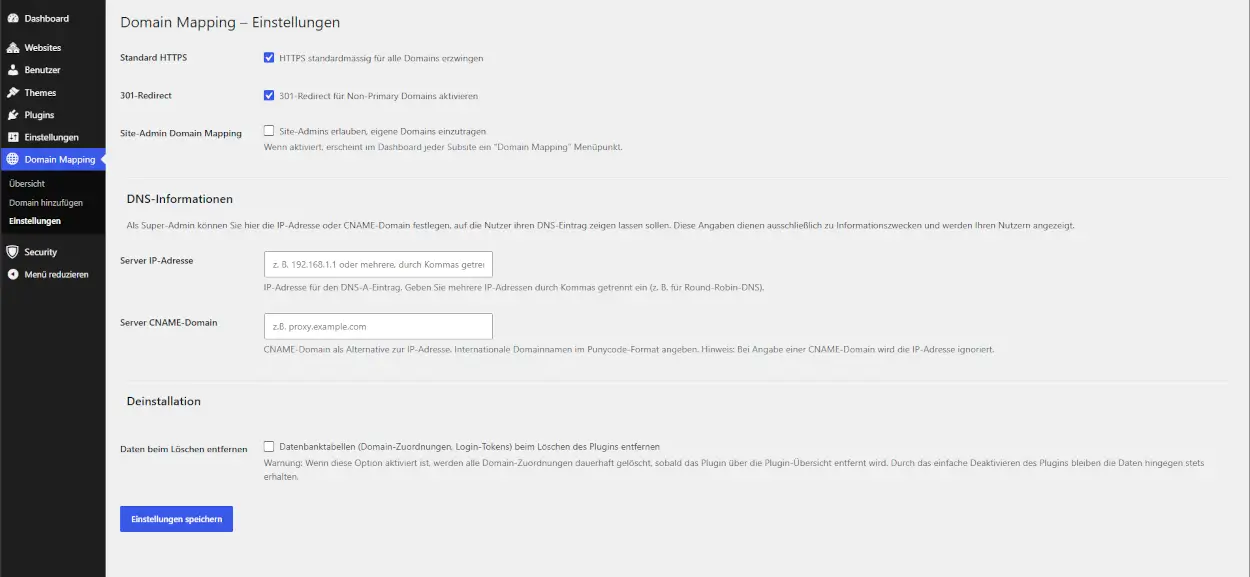
Open the plugin in the backend and check whether the menus and text are now displayed in German.
Note
If you’re unsure exactly where the files need to be uploaded, you’ll find a more detailed description in the included install-readme.txt.
Support
If you run into any issues while uploading or activating the files, you can create a ticket via our support portal at any time.